How to Drag Click: 7 Steps + Free Drag Click Test
Drag clicking is the technique behind the biggest click speed numbers you’ll ever see. Regular clicking tops out somewhere around 6 to 8 clicks per second for most people. Drag clicking can more than double that, because you stop pressing the button one click at a time and let friction do the work for you.
It also has a reputation for being hard to learn, easy to get wrong and rough on mice. All three are partly true. This guide walks you through how drag clicking actually works, what kind of mouse you need, a step-by-step method to learn it, the mistakes almost everyone makes at the start, and how to measure your progress with a free drag click test on our CPS test page, so you know when you’re doing it right.
What is drag clicking?
Drag clicking means sliding your fingertip across a mouse button instead of pressing it. If the button surface has enough grip, your finger doesn’t glide smoothly. It catches and releases over and over, like a wet finger on a glass or a rubber sole on a gym floor. Each catch pushes the switch down just enough to register a click, and each release lets it bounce back up.
The result is a burst of clicks from a single motion. One drag of a second or less can produce 10, 20 or even more clicks, depending on your mouse and technique. You then lift your finger, reset to the top of the button and drag again.
That’s the key difference from other fast clicking techniques:
| Technique | How clicks happen | Typical speed |
|---|---|---|
| Regular clicking | One finger press per click | 5 to 8 CPS |
| Jitter clicking | Tensed arm vibrates the finger | 10 to 14 CPS |
| Butterfly clicking | Two fingers alternate on one button | 12 to 16 CPS |
| Drag clicking | Friction makes the finger skip across the button | 20 CPS and more in bursts |
If you want to learn the other two, our guide on how to jitter click and butterfly click covers both step by step.
Does your mouse work for drag clicking?
This is the part most guides skip, and it’s the reason a lot of people give up. Drag clicking depends on your mouse at least as much as on your hand. Three things matter.
Button surface. You need a surface your finger can grip. Matte, slightly rough plastic works best. Glossy or very smooth coatings let your finger glide without catching, so you’ll get two or three clicks per drag at most.
Switch and debounce. Every mouse ignores very fast repeat signals from its switch for a few milliseconds. This is called debounce, and it exists to stop one press from counting twice. A long debounce time quietly throws away most of the clicks a drag produces. Some gaming mice let you lower debounce in their settings software, and many have a short one by default. If your drags always top out at the same low number no matter what you do, debounce is the likely reason.
Button shape and travel. A button with a firm, short press and a long flat area to drag across gives you more room to build up clicks. Very soft or very curved buttons are harder.
You can check your mouse in two minutes. Open the CPS test, pick 5 seconds, and try a few slow, careful drags. If a single drag already gives you 5 or more clicks, your mouse can drag click and the rest is practice. If you can’t get past 2 or 3 per drag even after trying the tips below, the mouse is probably the limit.
How to drag click, step by step
1. Clean and dry your finger
Wash your hands and dry them well. Oil and lotion are the enemy of friction. Some players also clean the mouse button with a slightly damp cloth for the same reason. A clean, dry fingertip catches much better than a greasy one.
2. Use the right finger and angle
Most people drag with the index finger. Hold your finger almost flat along the button, at a low angle, with the pad of the fingertip touching the surface. Don’t use the very tip or your nail. You want a wide, soft contact patch.
3. Press lightly
This is the hardest part to get used to. Rest your finger on the button with only enough pressure to keep contact. If you press too hard, the switch stays down the whole time and you get one long click. If you press too lightly, your finger slides without catching. The right pressure is somewhere in between, and you’ll find it by feel.
4. Drag downward from the top of the button
Start near the top of the button, close to the scroll wheel, and drag your fingertip down toward your palm in one smooth motion. Most people get better results dragging down than up, but try both. The movement should take somewhere around half a second to a second. Too fast and your finger skips over the catches. Too slow and it just slides.
5. Listen for the buzz
When it works, you’ll hear it. A good drag sounds like a fast, rattling buzz from the switch rather than a few separate clicks. That sound is the most useful feedback you have while learning, even before you look at the number.
6. Reset and repeat
Lift your finger, move it back to the top and drag again. The time it takes to reset is where most of your speed goes, so practice making it quick and consistent. Some players use two fingers in turn, dragging with one while the other resets.
7. Take a drag click test
Open the CPS test, pick 5 seconds and drag through the whole run. Then look at three things on the result screen:
- Clicks per second. Your overall speed, including the resets.
- Rank. The test ranks you from Basic Phone (under 5 CPS) up to Mining Rig (12 CPS and up). A working drag click puts you in Mining Rig territory.
- Rhythm check. The test looks at how even the gaps between your clicks were.
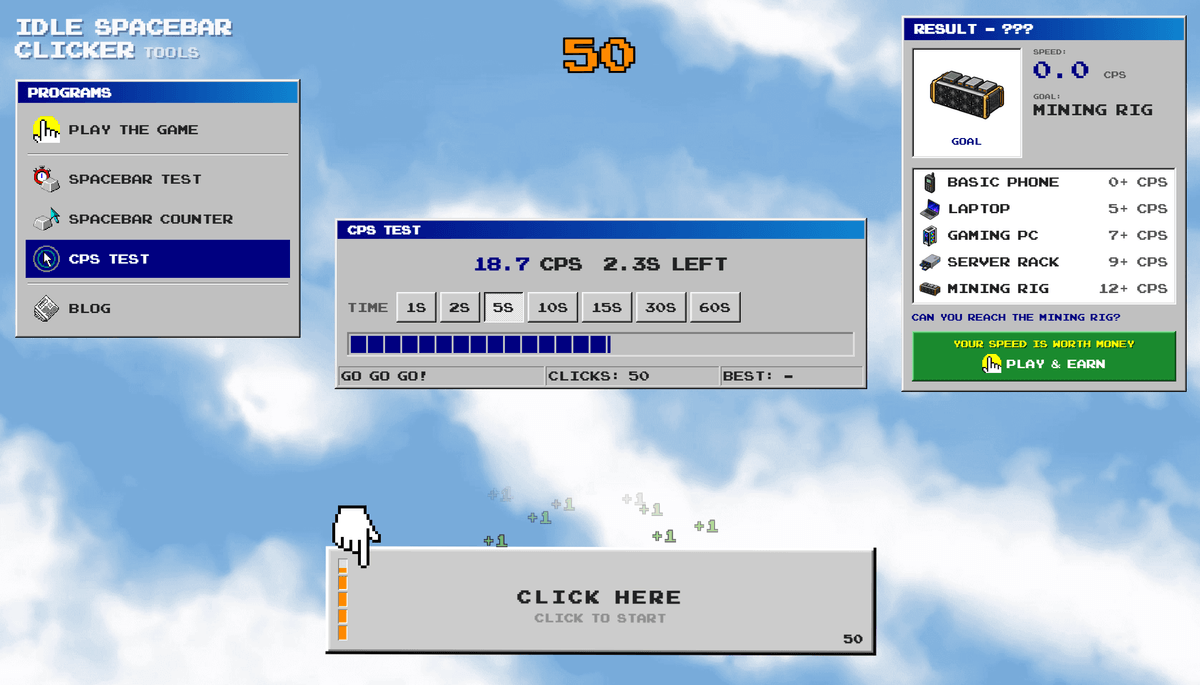 Mid-run: halfway through a 5-second test, the speed meter on the pad is lit up and the live CPS reads 18.6.
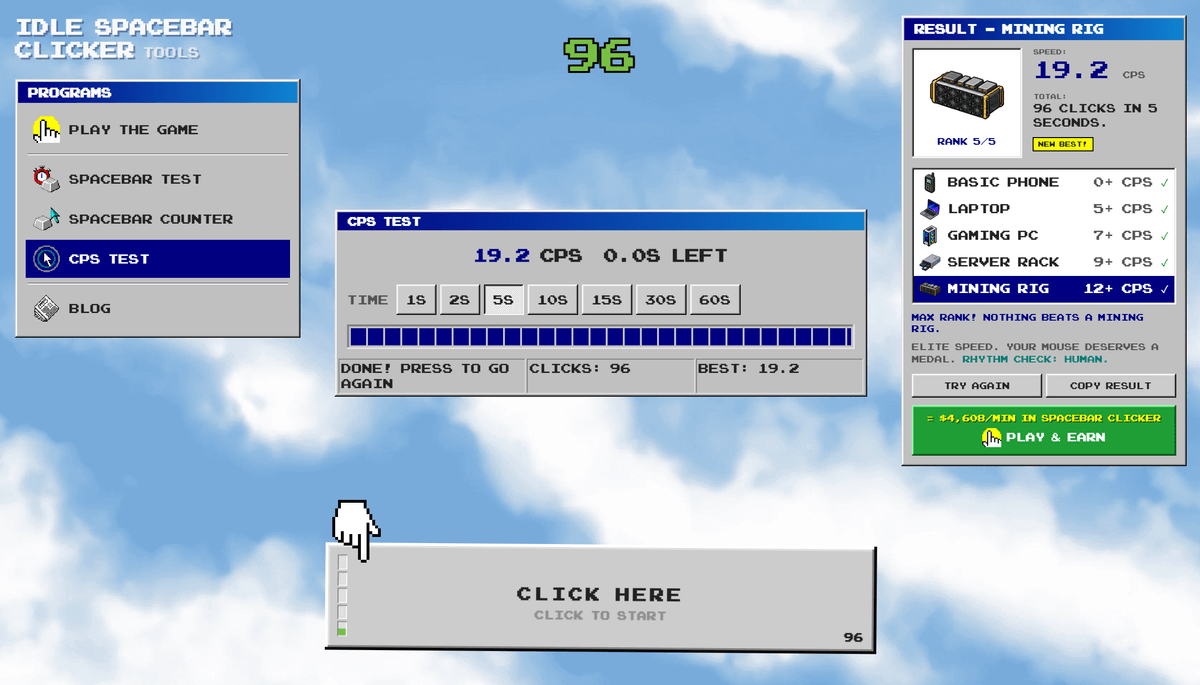 A finished 5-second run at 19.2 CPS. Mining Rig rank, new best, and the rhythm check says human.
Common drag clicking mistakes
Pressing too hard. The most common problem by far. If your CPS barely moves above normal clicking, ease off. Think of touching the button, not pushing it.
A sweaty or oily finger. Friction disappears fast. If your drags suddenly get worse in the middle of a session, wipe your finger and the button.
Dragging too fast. A rushed flick skips over the catches. Slow the drag down and see if the buzz gets louder.
Judging by a single drag. One great drag doesn’t mean much. Use a 5 or 10-second test so the resets count, and compare runs of the same length.
Blaming yourself for the mouse. If nothing changes after a week of practice, test a different mouse before you give up on the technique.
Is drag clicking bad for your mouse?
It can wear a mouse faster than normal use. Each drag produces many clicks in a short time, and the friction also rubs the button surface. Over months, buttons can lose their texture and switches can start to double-click on their own, which is the same fault that makes drag clicking work in the first place.
A few habits help:
- Don’t press hard. Light drags are both faster and gentler on the switch.
- Don’t use grip tape or rough coatings you can’t remove if you’re not sure you want them.
- Keep practice sessions short.
- If your mouse starts double-clicking during normal use, that’s a sign of switch wear.
Is drag clicking bad for your hand?
Drag clicking is gentler on your arm than jitter clicking, because the motion is a light slide rather than a tensed vibration. The main risk is friction on your fingertip. Long sessions can leave the skin sore or even blistered.
Take breaks, stop if anything burns or hurts, and don’t chase records for an hour at a time. Short sets with rests between them work better for learning anyway.
Is drag clicking allowed?
It depends on where you use it. Most click speed tests count every click the browser receives, so drag clicking works on them. Some competitive game servers limit how many clicks per second they accept, and some have their own rules about clicking techniques. If you play somewhere with rules, check them before you use it in a real match.
On our CPS test, drag clicking counts like any other click. One thing to know: the rhythm check flags results above 25 CPS as “robot”, because that’s beyond what fingers can normally do on their own. A very strong drag click can trip it. That’s not a ban, just a note that your result looks more like a machine than a hand.
Drag clicking in Spacebar Clicker
In Spacebar Clicker, the idle game behind these tests, every press of the big Spacebar button earns money, and a five-bar speed meter multiplies your clicks when you go fast:
| Speed | Meter | Bonus |
|---|---|---|
| 4+ per second | 1 bar | x1.3 |
| 7+ per second | 2 bars | x1.5 |
| 12+ per second | 3 bars | x2 |
| 16+ per second | 4 bars | x3 |
| 19+ per second | 5 bars | x4 |
The game counts real presses only and ignores anything beyond 20 per second, so drag clicking can push you into the top of the meter but can’t break the game. And you never have to click at all: your devices earn on their own while you’re away. Speed is a bonus for active play, not a requirement.
The test result screen shows what your speed would be worth in the game, using the same bonus table. A 19 CPS run works out to several thousand dollars a minute on the free starter phone, before any upgrades.
A one-week practice plan
- Day 1: Check your mouse. Do ten slow single drags and count the clicks on the test.
- Day 2 and 3: Work on pressure. Do 5-second runs and aim for a louder buzz, not a higher number.
- Day 4 and 5: Work on the reset. Keep drags the same length and make the return quicker.
- Day 6: Run three 10-second tests and take the middle result as your real score.
- Day 7: Rest your hand. Come back fresh and compare.
Keep every session short, and let your best score build over days rather than minutes.
Quick answers
How do you drag click? Rest a clean, dry fingertip lightly on the mouse button and slide it down the button. Friction makes your finger catch and release, and each catch registers as a click.
Why can’t I drag click? Usually because you press too hard, your finger is oily, or your mouse has a glossy button or a long debounce time that ignores fast clicks.
How many CPS can you get with drag clicking? Short drags often go past 20 clicks per second. Over a full 5 or 10-second test your speed is lower, because resetting your finger takes time.
Does drag clicking break your mouse? It can wear the switch and button surface faster than normal use. Light pressure and short sessions reduce the wear.
Where can I test my drag clicking? Use the free CPS test. Pick 5 or 10 seconds and drag through the run to see your clicks per second, rank and rhythm check.
Try it now
Open the CPS test, pick 5 seconds and see how many clicks one drag gives you. When you’re ready to put that speed to work, Spacebar Clicker is free, runs in your browser and turns every click into money for your growing office.